
Free to browse
Photography tips
54 free skill tips with unique step photos — plus long-form guides with FAQ and trusted sources. Every tip links to a full photographed course.
Photography tips
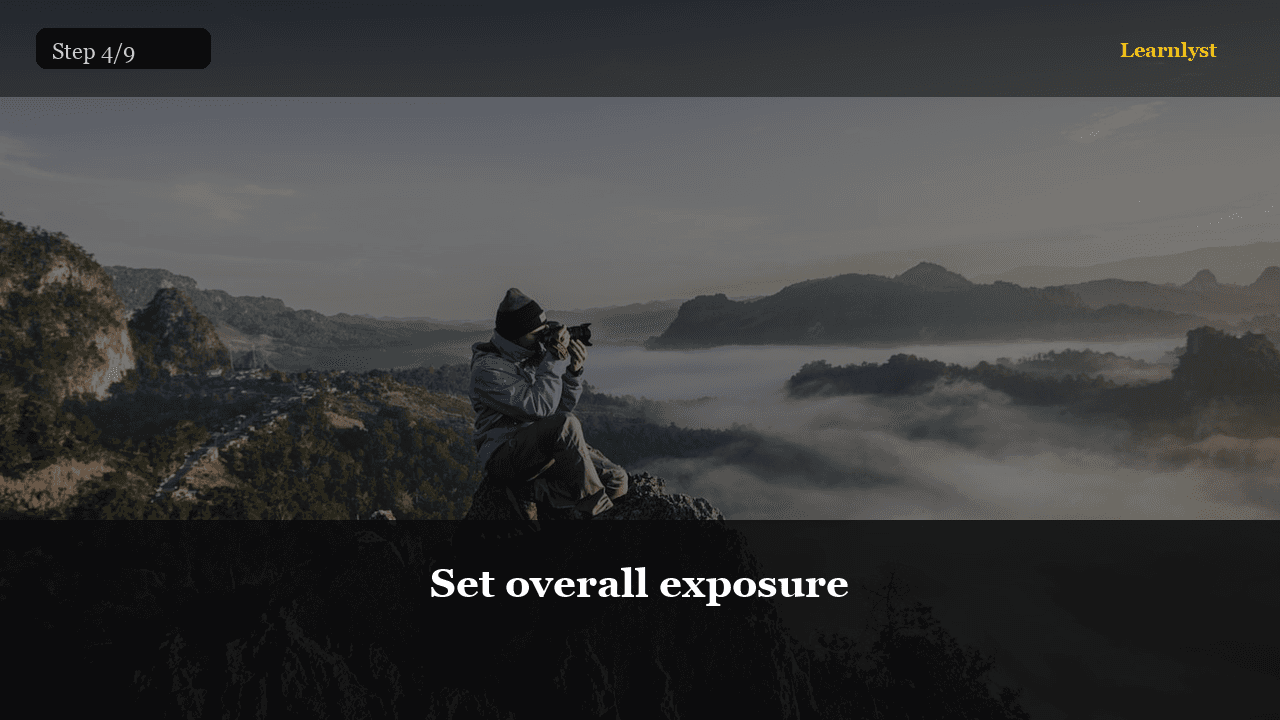
📷 Photography · Step 4/9
Set overall exposure
Set overall exposure — step 4 of 9 in Edit a RAW Photo in 5 Minutes. Move the exposure slider until the midtones (the main subject) look correct.
From course: Edit a RAW Photo in 5 Minutes
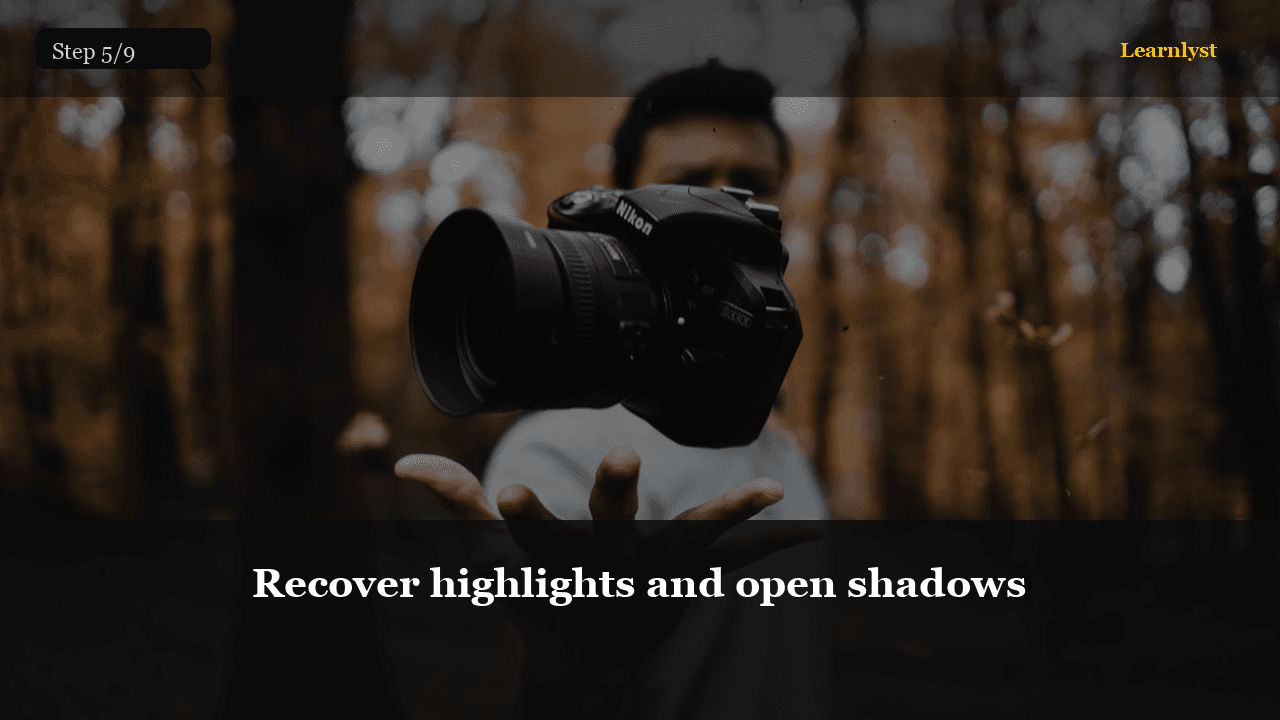
📷 Photography · Step 5/9
Recover highlights and open shadows
Recover highlights and open shadows — step 5 of 9 in Edit a RAW Photo in 5 Minutes. Pull the highlights slider left (negative) to recover bright areas — clouds, windows, shiny surfaces.
From course: Edit a RAW Photo in 5 Minutes
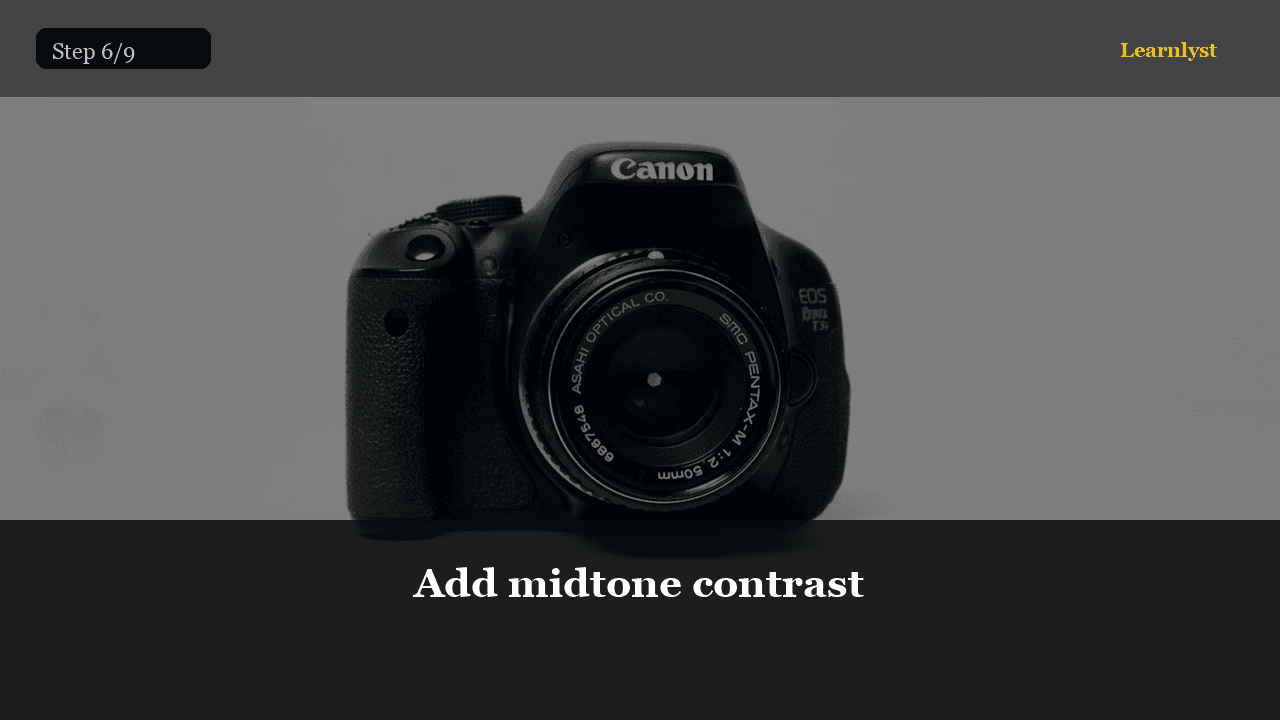
📷 Photography · Step 6/9
Add midtone contrast
Add midtone contrast — step 6 of 9 in Edit a RAW Photo in 5 Minutes. Clarity increases contrast in the midtones specifically, making textures pop and edges feel sharper without affecting highlights or shadows…
From course: Edit a RAW Photo in 5 Minutes
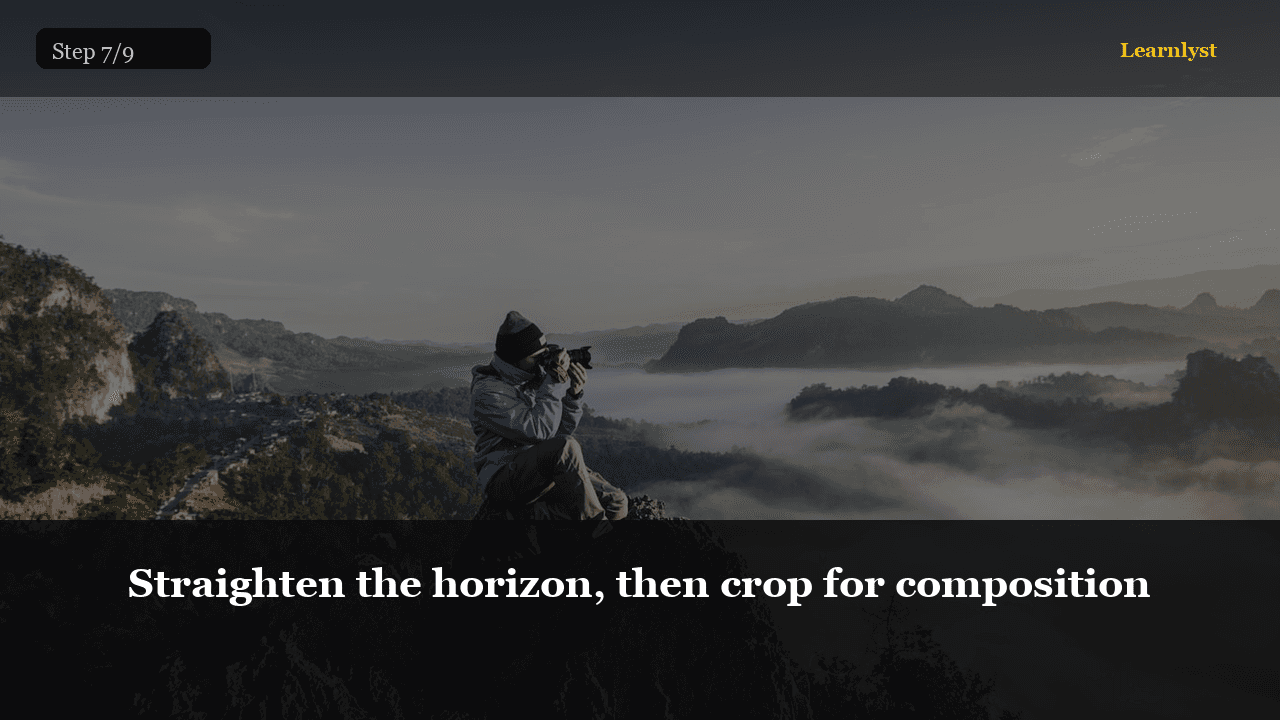
📷 Photography · Step 7/9
Straighten the horizon, then crop for composition
Straighten the horizon, then crop for composition — step 7 of 9 in Edit a RAW Photo in 5 Minutes. Use the crop tool's straighten feature — draw a line along the horizon or any known horizontal/vertical. The image rotates to align.
From course: Edit a RAW Photo in 5 Minutes
📷 Photography · Step 8/9
Choose quality and size
Choose quality and size — step 8 of 9 in Edit a RAW Photo in 5 Minutes. In Lightroom: File → Export. Set format to JPEG, quality 85–92% for web (smaller files, visually lossless) or 95–100% for print.
From course: Edit a RAW Photo in 5 Minutes
📷 Photography · Step 9/9
Name, save, and verify
Name, save, and verify — step 9 of 9 in Edit a RAW Photo in 5 Minutes. Name the export descriptively: location-subject-date.jpg. Save to a dedicated 'Exports' folder separate from your RAW archive.
From course: Edit a RAW Photo in 5 Minutes
Free tips today. Full courses when you are ready.
Create a free account for daily tips — or unlock everything for $9/mo.