
Free to browse
Phones tips
40 free skill tips with unique step photos — plus long-form guides with FAQ and trusted sources. Every tip links to a full photographed course.
Phones tips

📱 Phones · Step 6/9
Clear Safari/Chrome and app caches
Clear Safari/Chrome and app caches — step 6 of 9 in Clean Up 10 GB in 10 Minutes. Safari: Settings → Safari → Clear History and Website Data. Chrome on Android: three-dot menu → Settings → Privacy → Clear Browsing Data →…
From course: Clean Up 10 GB in 10 Minutes

📱 Phones · Step 7/9
WhatsApp media is a silent storage monster
WhatsApp media is a silent storage monster — step 7 of 9 in Clean Up 10 GB in 10 Minutes. WhatsApp → Settings → Storage and Data → Manage Storage. Sort chats by size. Open the biggest chat, select videos you never watch, delete.
From course: Clean Up 10 GB in 10 Minutes
📱 Phones · Step 8/9
Downloads folder: the junk drawer of your phone
Downloads folder: the junk drawer of your phone — step 8 of 9 in Clean Up 10 GB in 10 Minutes. Open the Files app (iPhone) or Files / My Files (Android). Go to Downloads. Sort by size.
From course: Clean Up 10 GB in 10 Minutes
📱 Phones · Step 9/9
Monthly: empty the trash, check storage
Monthly: empty the trash, check storage — step 9 of 9 in Clean Up 10 GB in 10 Minutes. Set a recurring reminder — first of the month, two minutes. Open Storage, empty photo trash, clear browser cache.
From course: Clean Up 10 GB in 10 Minutes
📱 Phones · Step 1/6
Settings → Focus → Sleep, or the Health bedtime
Settings → Focus → Sleep, or the Health bedtime — step 1 of 6 in iPhone Settings That Cut the Noise. Set a bedtime and wake. Allow Phone and a short list of people. Silence everything else.
From course: iPhone Settings That Cut the Noise
📱 Phones · Step 2/6
Work Focus on weekdays, 9–6 or whatever you actually work
Work Focus on weekdays, 9–6 or whatever you actually work — step 2 of 6 in iPhone Settings That Cut the Noise. Allow Calendar, Mail if you must, Slack/Teams if that is the job, Messages from VIPs. Ban shopping, news, and games.
From course: iPhone Settings That Cut the Noise
📱 Phones · Step 3/6
Settings → Notifications → Scheduled Summary
Settings → Notifications → Scheduled Summary — step 3 of 6 in iPhone Settings That Cut the Noise. Add the apps that are not people: shopping, news, games, airlines, food delivery.
From course: iPhone Settings That Cut the Noise

📱 Phones · Step 4/6
Per-app: Lock Screen, Banners, Sounds, Badges
Per-app: Lock Screen, Banners, Sounds, Badges — step 4 of 6 in iPhone Settings That Cut the Noise. Open each noisy app's notification screen. Turn off Lock Screen for anything that is not a person or a code.
From course: iPhone Settings That Cut the Noise

📱 Phones · Step 5/6
VIP for humans, thread mute for newsletters
VIP for humans, thread mute for newsletters — step 5 of 6 in iPhone Settings That Cut the Noise. Mail → VIP for people you answer. Notifications: VIP only if you can live with it.
From course: iPhone Settings That Cut the Noise

📱 Phones · Step 6/6
One calendar widget, flashlight, camera. Done
One calendar widget, flashlight, camera. Done — step 6 of 6 in iPhone Settings That Cut the Noise. Long-press the lock screen. Cut live activities you do not need. Standby on a nightstand is a clock, not a scoreboard.
From course: iPhone Settings That Cut the Noise
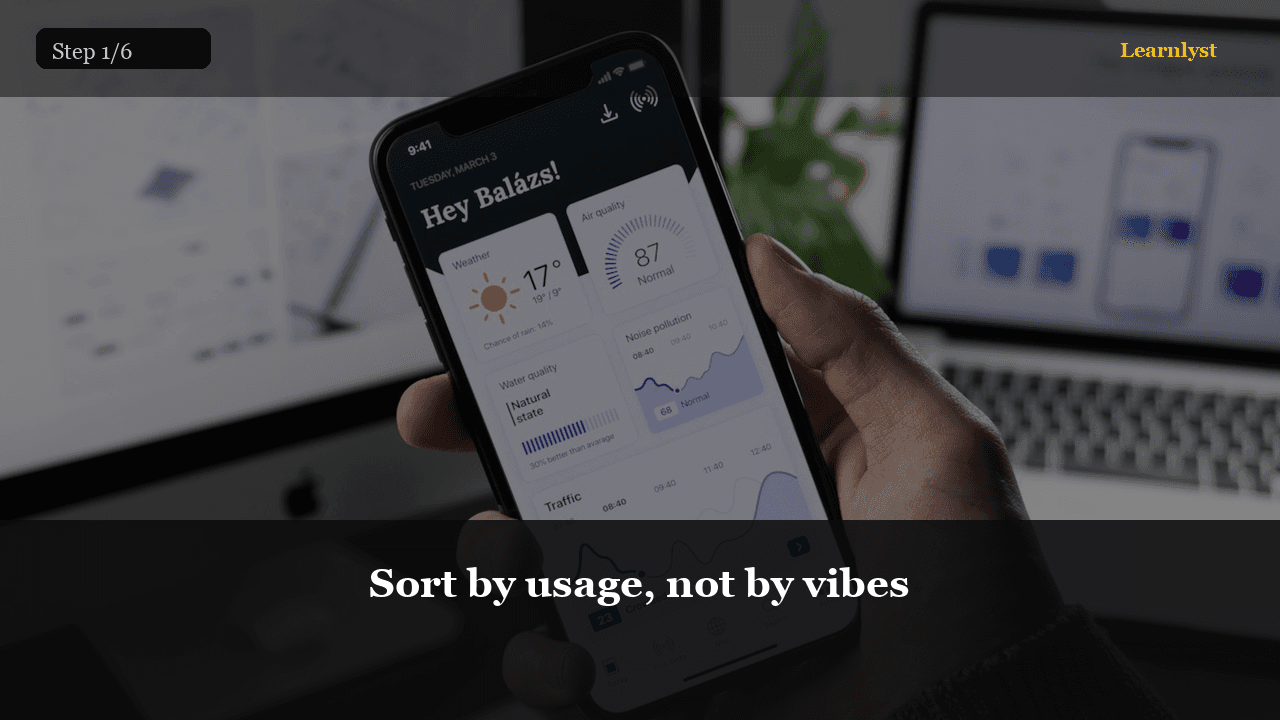
📱 Phones · Step 1/6
Sort by usage, not by vibes
Sort by usage, not by vibes — step 1 of 6 in Android: Battery, Storage, and Backup. If one app is 30% and you barely opened it, it is running in the background.
From course: Android: Battery, Storage, and Backup
📱 Phones · Step 2/6
Adaptive battery on, unused apps to sleep
Adaptive battery on, unused apps to sleep — step 2 of 6 in Android: Battery, Storage, and Backup. Let Android hibernate what you have not opened in months. Don't whitelist twenty games.
From course: Android: Battery, Storage, and Backup
📱 Phones · Step 3/6
Storage → the biggest tile is the job
Storage → the biggest tile is the job — step 3 of 6 in Android: Battery, Storage, and Backup. If it is WhatsApp: in-app Storage and data → manage downloads, delete old video, or back up photos to Google Photos then delete device…
From course: Android: Battery, Storage, and Backup
📱 Phones · Step 4/6
Settings → System → Backup, or search Backup
Settings → System → Backup, or search Backup — step 4 of 6 in Android: Battery, Storage, and Backup. On, with the Google account you still have the password for (password manager course).
From course: Android: Battery, Storage, and Backup
📱 Phones · Step 5/6
Write down what is included
Write down what is included — step 5 of 6 in Android: Battery, Storage, and Backup. Usually: apps list, call history, some settings, SMS depending on OEM. Not always: WhatsApp chats (that's a Google Drive toggle inside…
From course: Android: Battery, Storage, and Backup
📱 Phones · Step 6/6
Google → Find My Device, on, location on
Google → Find My Device, on, location on — step 6 of 6 in Android: Battery, Storage, and Backup. This is how you locate or remotely lock YOUR lost phone. It is not a course in tracking other people.
From course: Android: Battery, Storage, and Backup
Free tips today. Full courses when you are ready.
Create a free account for daily tips — or unlock everything for $9/mo.